Token creator
Compose a round, square or hexagonal token from an image, frames and ornaments, then export it as PNG or WebP for Foundry VTT, Roll20 and other virtual tabletops. The tool is free and needs no account.
What is the token creator?
The token creator is a free JDR Ninja tool for making tokens for your characters, NPCs and monsters. Starting from an image, you choose a shape (round, square or hexagonal) and a frame, add a background, an ornament, a shadow or a glow if you wish, then export a square PNG or WebP file of 128 to 2048 pixels. You can then import it into Foundry VTT, Roll20, Owlbear Rodeo or any other virtual tabletop.
Free, no account
No sign-up, no watermark and no limit on the number of exports. There is nothing to install.
A character that breaks out of the frame
Let the character's head, or the whole character, break out of the frame, with a drop shadow if you like.
Ready for your virtual tabletop
You export the token as PNG or WebP, from 128 to 2048 pixels. If you add a margin, the editor shows the scale to enter in Foundry VTT.
What it looks like
A frame for every creature rank
Ten fantasy frames mark a creature's rank, from minion to legendary, in an ally or an enemy version, so your players spot the boss on the map at a glance. The other frames and the ornaments are sorted by theme: simple, fantasy, horror, science fiction, steampunk and nature.
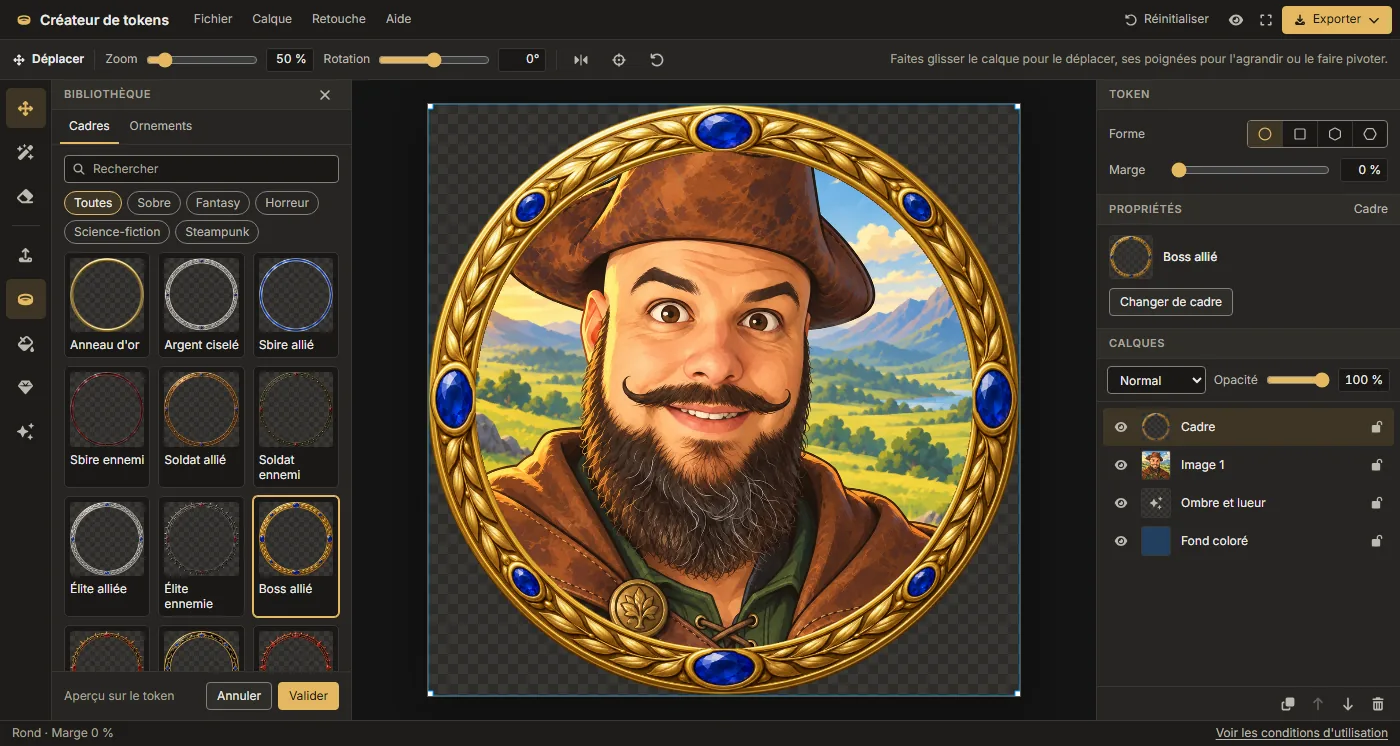
A portrait cut out in two clicks
On a portrait with a plain background, “Remove background” selects the backdrop, then the “Make transparent” button clears it. The magic wand removes an area of one colour, and the eraser cleans up the edges or restores what was erased. The image, the frame, the background and the shadow stay separate layers, each with its own opacity and blend mode.
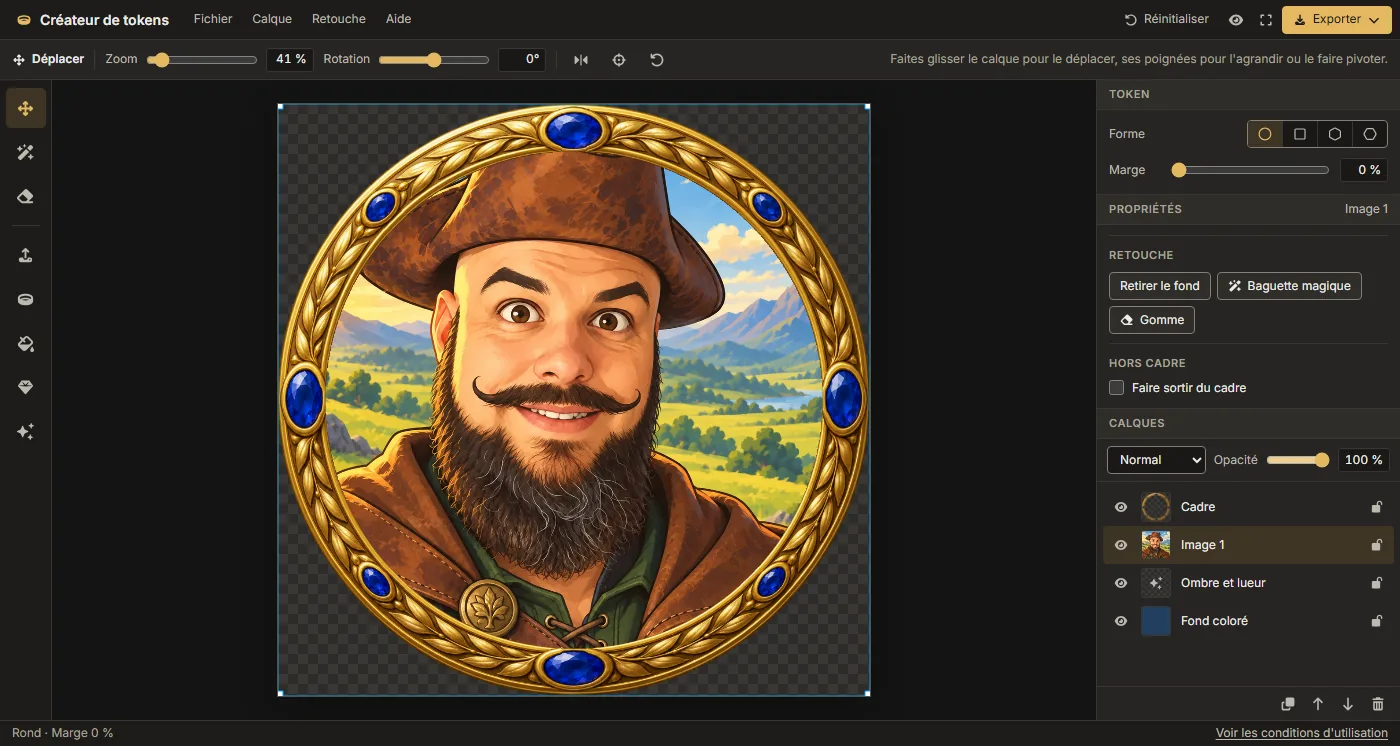
A file ready for the grid
The file is square and transparent around the shape, so it drops straight onto a grid square. At 512 pixels it suits Foundry VTT, and WebP is lighter than PNG for the same image. You may use it freely, including commercially.
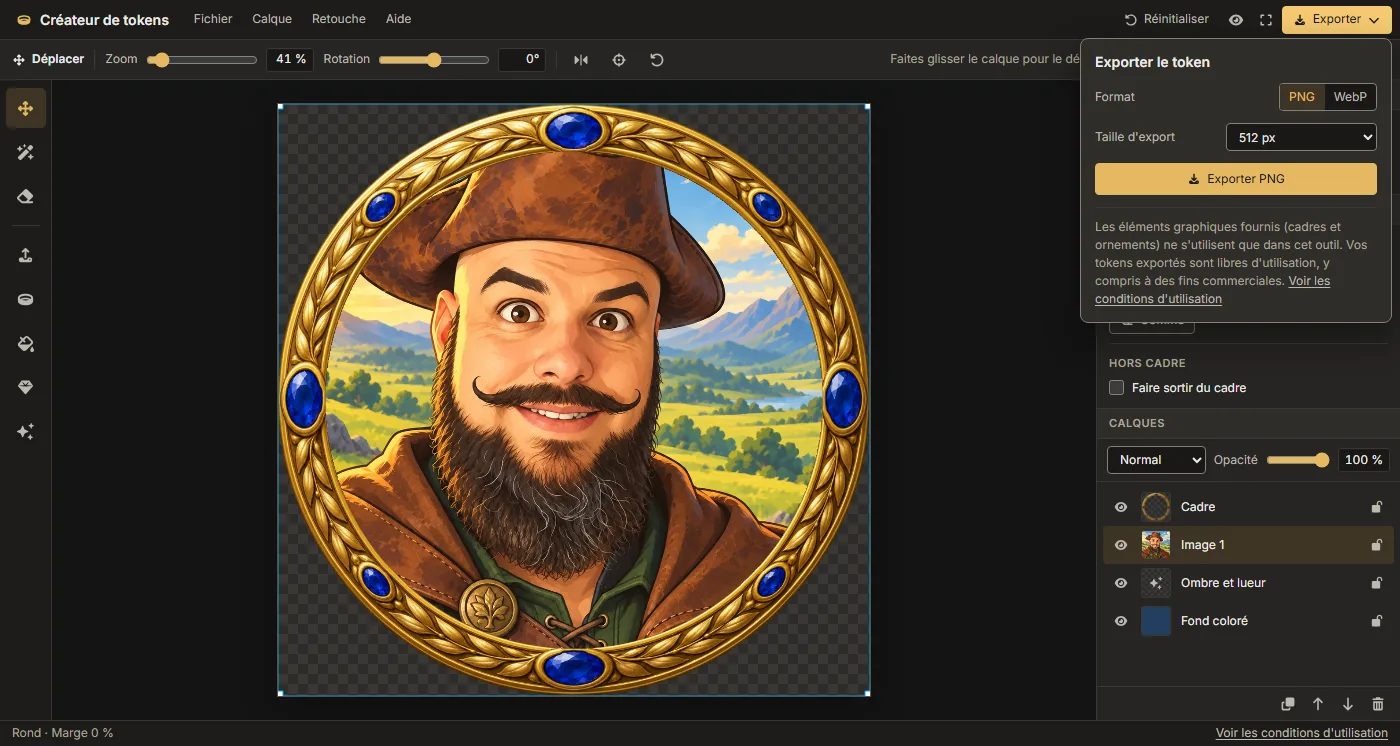
See also
-
Dice table
Roll 3D dice with your group, no installation needed.
-
Name generators
A name for the character, NPC or monster on your token.
-
Roll20 Foundry VTT Owlbear Rodeo
The directory pages of these three virtual tabletops, where you can import your tokens.
Frequently asked questions
Can I create a square or hexagonal token?
Can I use my own frame?
How do I make a character break out of the frame?
My token with a margin looks smaller in Foundry VTT. What should I do?
How do I import my token into Roll20 or Owlbear Rodeo?
Can I use my exported tokens freely?
Is the tool free?
Is my token saved?
Which export formats and sizes are available?
Create your first token
Import a portrait, choose a frame, then export your token. No account or installation is needed.
How to create a token
The graphic elements provided (frames and ornaments) may only be used inside this tool. Your exported tokens are free to use, including commercially. See the terms of use