What you need
Before you start, check that you have:
- a JDR Ninja account and an Atlas subscription;
- the Twitch channel you stream on;
- a world and a campaign in the Atlas workshop.
For Atlas subscribers: the overlay from the Gobelin tier, character sheets from the Mimique tier. See the plans.
Install the extension on Twitch
The overlay is a Twitch extension: you install it once on your channel.
-
Sign in to Twitch with your channel's account, then open the extension's page.
- Click "Install".
- In the Creator Dashboard, open the "Extensions" menu, then the "My Extensions" tab.
- Click the extension's "Activate" button, then "Set as Overlay 1". Twitch then shows "Extension is now Active!".
A channel has a single Overlay 1 slot. If another extension already holds it, Twitch shows "You are replacing an active extension": click "Replace" to put the JDR Ninja extension in its place.
The overlay only shows while you are live, over your channel's video.
Link your channel
In the Atlas workshop, open one of your worlds. In the world's menu, open the "Overlay Twitch" page, just above "Settings", then click "Connect my Twitch channel".
Twitch shows its authorization page for the account signed in on twitch.tv: check that it is the account of the channel you stream on (if not, switch accounts on Twitch), then authorize access. Back in the workshop, the "Twitch channel" box shows "Channel linked" and your channel's name.
You can only link one channel to your JDR Ninja account, and a channel can only be linked to one account. As long as no channel is linked, the same button also appears in each campaign's "Overlay Twitch" section.
Signing in to JDR Ninja with Twitch does not link your channel to the overlay: they are two separate connections.
Overview of your Twitch connections
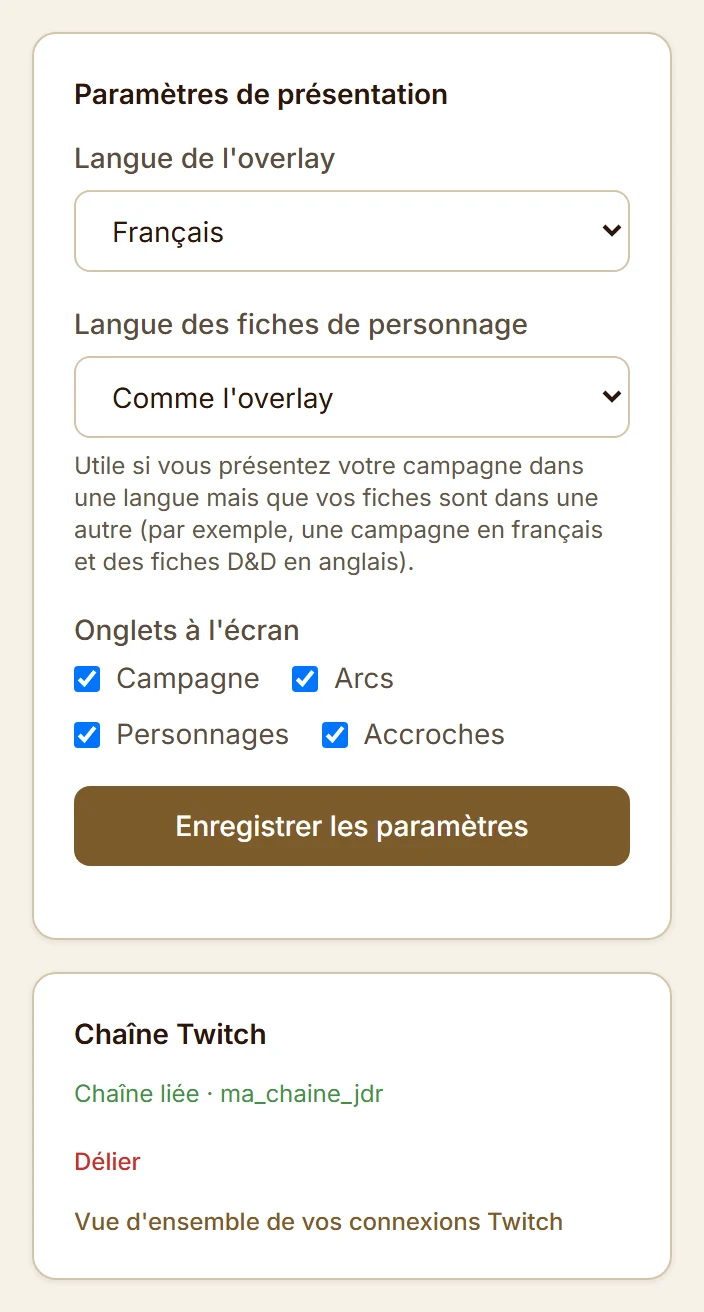
Set up the display
On the same page, the "Presentation settings" apply to all your campaigns:
- "Overlay language": the language of the text your viewers see (French, English, Spanish, German or Italian);
- "Character sheet language": "Same as overlay" by default, to change if your sheets are in a different language from your stream's;
- "On-screen tabs": the tabs shown in the overlay (Campaign info, Arcs, Characters, Plot hooks).
Click "Save settings". If a campaign is already live, then click "Publish changes" in its section to apply the new settings.
Prepare the campaign
Open the campaign in the workshop: its "Overlay Twitch" section is in the campaign's menu, just above "Settings". While no campaign is live, the world's "Overlay Twitch" page also lists your campaigns, each with a link to its section.
The section shows the roster, in three lists: "Characters on air", "Arcs on air" and "Plot hooks on air". To add an item, search for it in the field under the list and click its name; click "Remove" to take it off. Drag the rows to change their order on screen. Each list can hold up to 25 items.
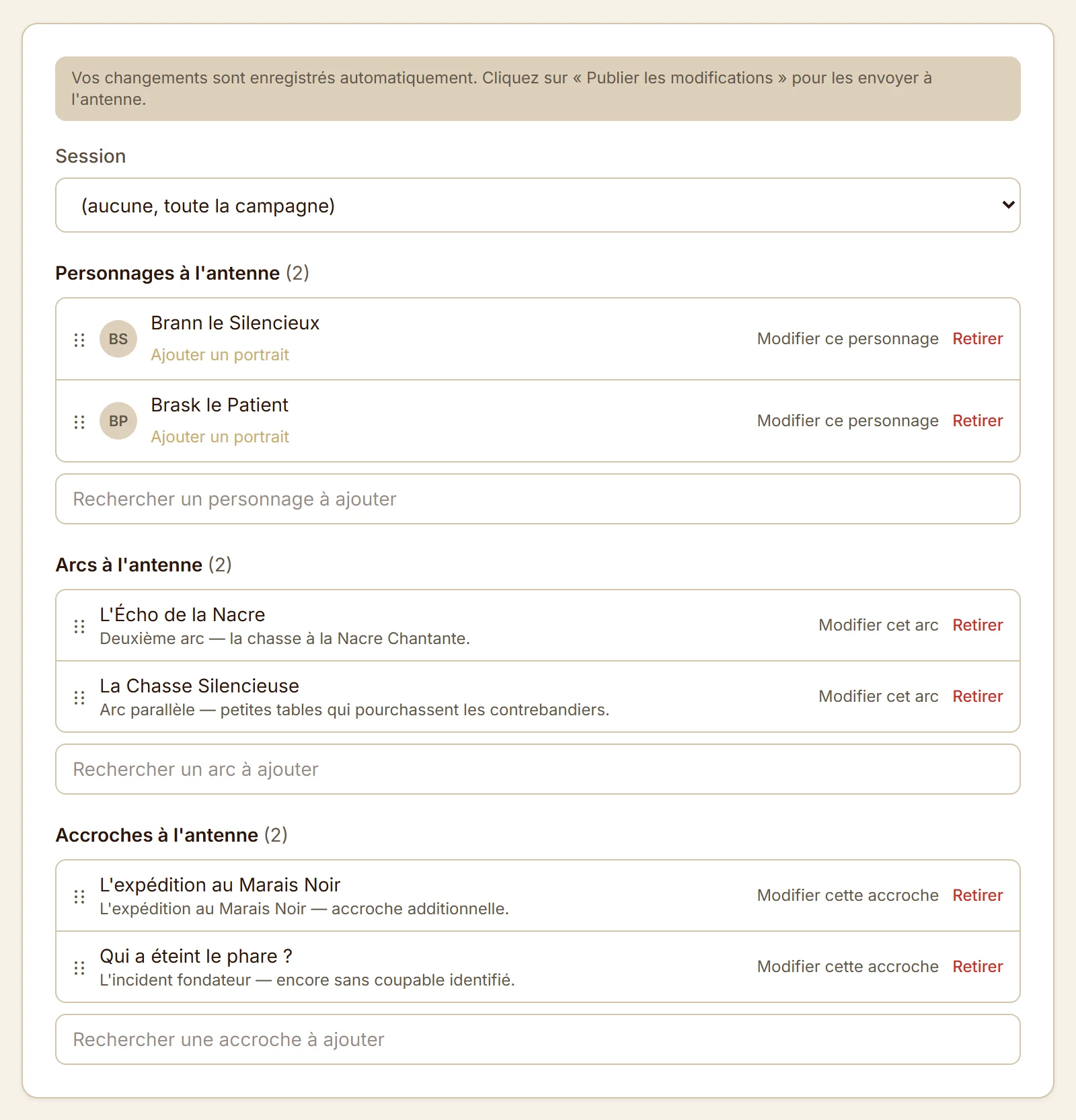
Showing characters and their sheets is included from the Mimique tier. If a character has no portrait, its row shows an "Add a portrait" link.
With the "Session" field, you can show only the characters of one session. The default choice, "(none, whole broadcast)", shows every character on the list. If you pick a session, a character who did not take part in it is marked "Not in session" and does not appear on air; the "Edit the characters present" link opens the session. Arcs and plot hooks do not depend on the session.
Publish your campaign
When the lists are ready, click "Publish live" at the bottom of the section. The badge at the top of the section changes from "Offline" to "Live", and a green dot appears next to the "Overlay Twitch" entry in the campaign's menu.
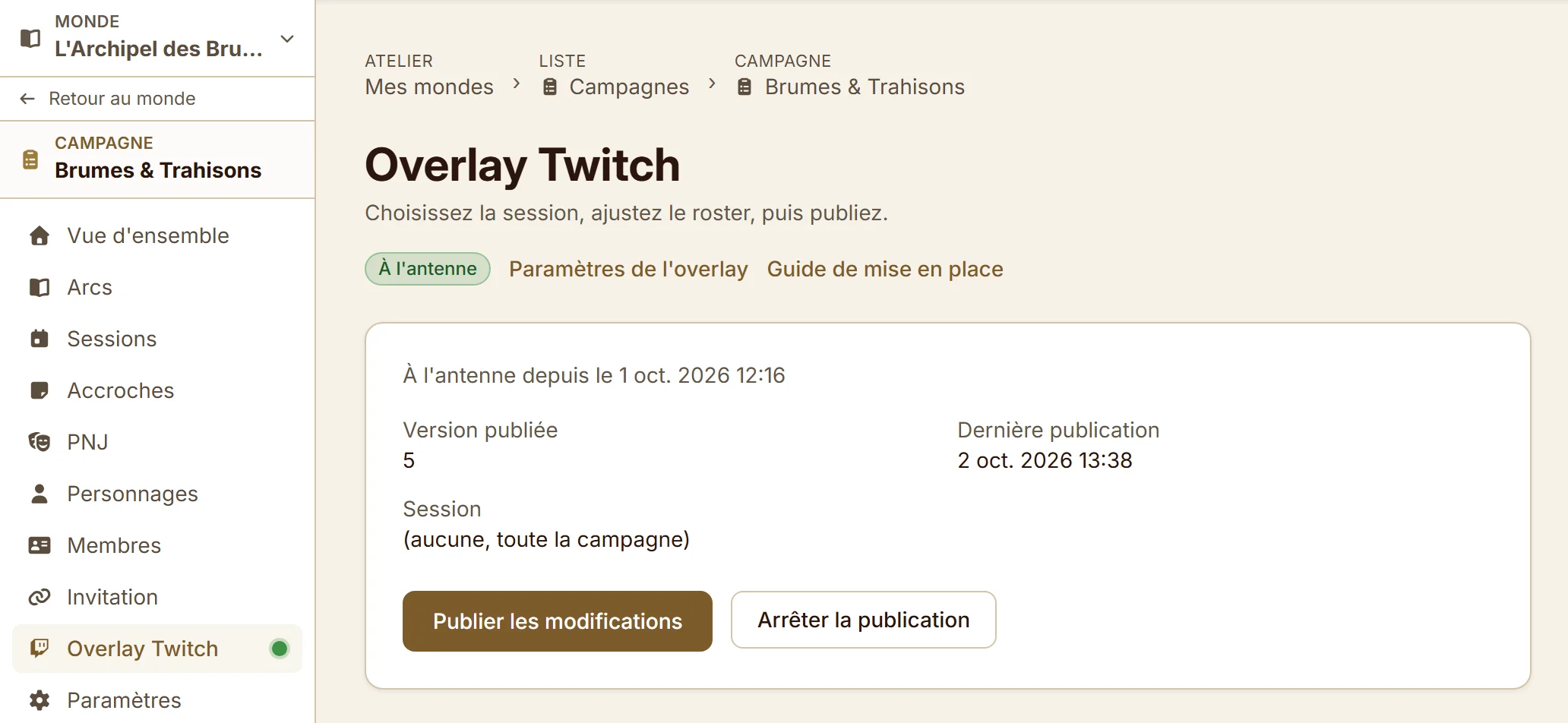
The overlay does not update by itself. After a change (a list, the session, a setting, a character sheet), click "Publish changes": it shows in the overlay within a minute.
At the end of the stream, click "Stop publishing". The same button is also on the world's "Overlay Twitch" page.
Only one campaign can be live on your channel. If another campaign already is, the section says so: stop that campaign's publication first. You can prepare the lists in the meantime.
What your viewers see
While you are live, the overlay shows over the video in a collapsible card, with the tabs picked in "On-screen tabs". Your viewers can open each character's sheet from it.
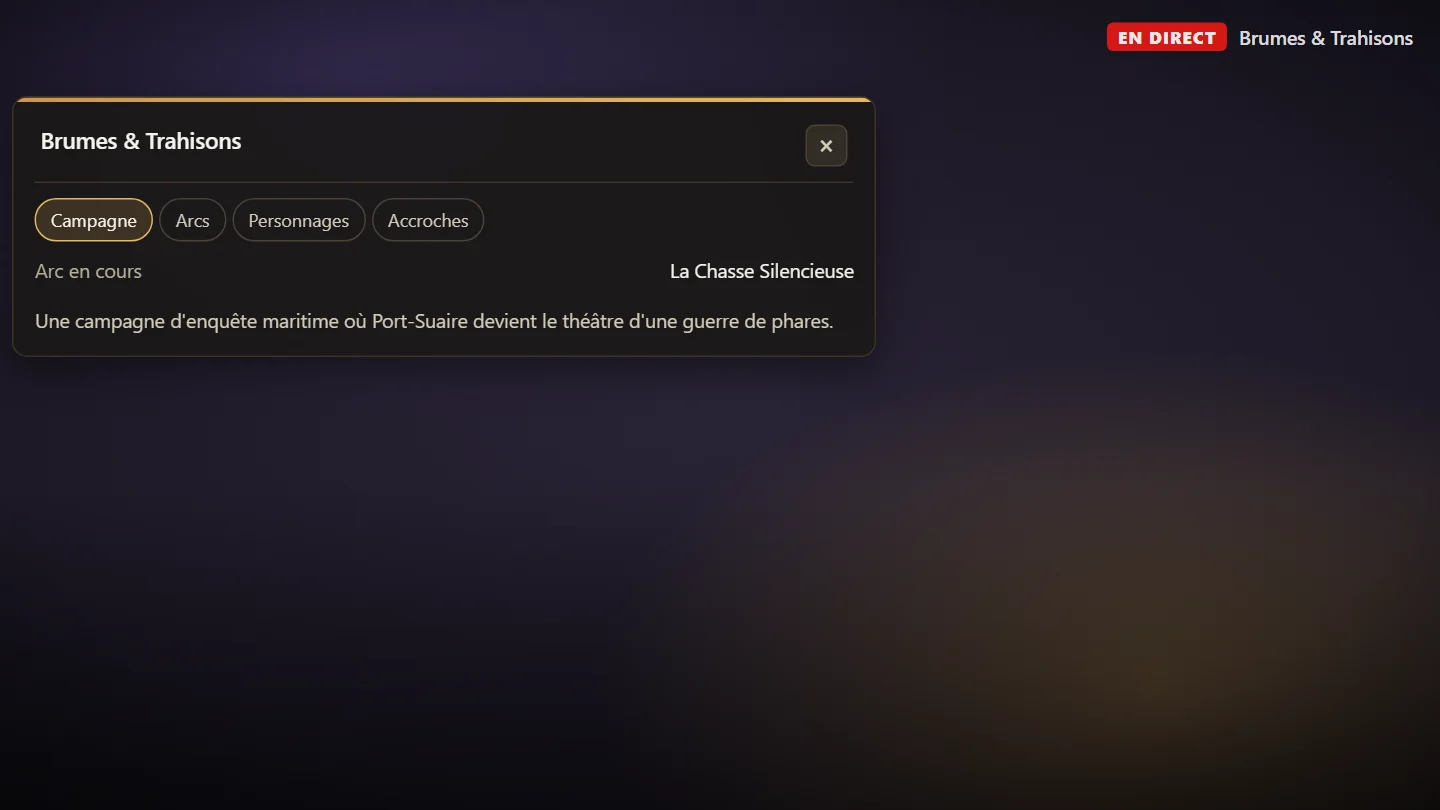
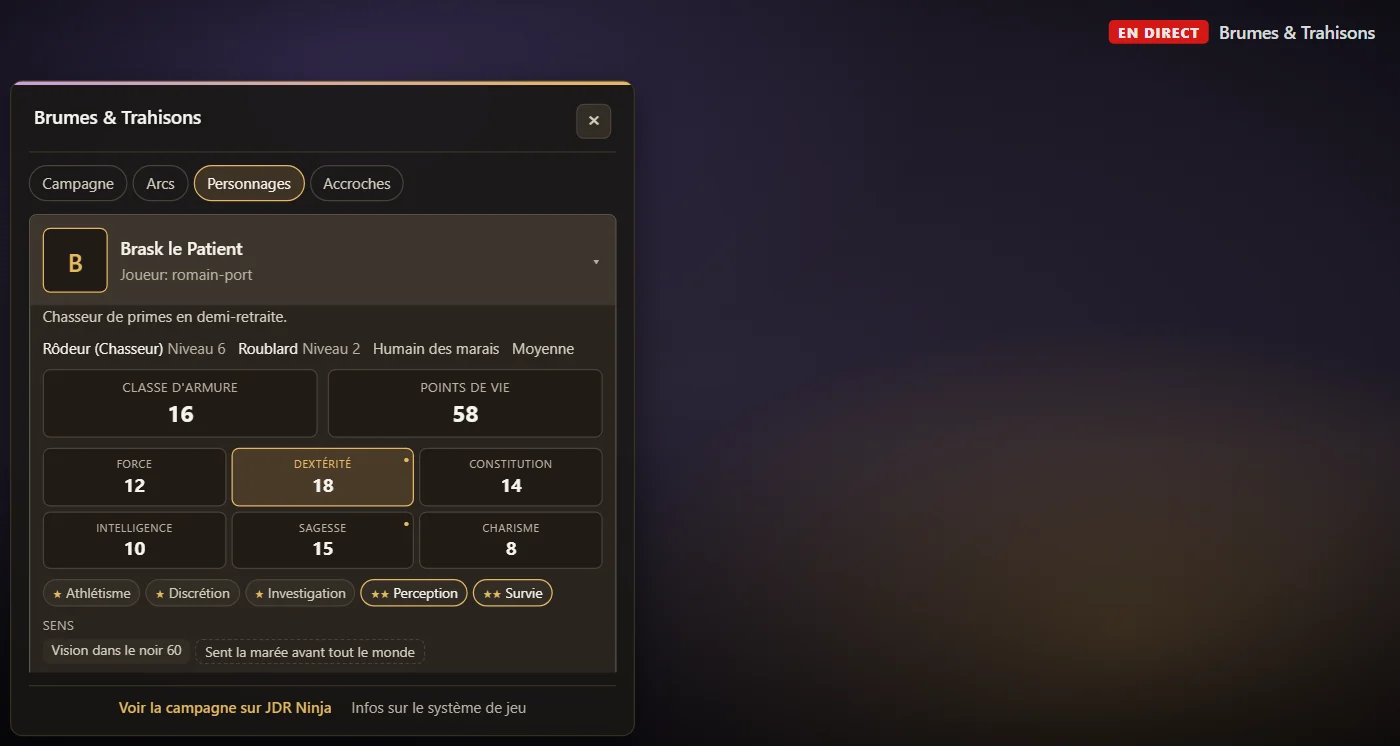
As long as no campaign is live on your channel, the overlay shows a demo campaign, labelled "Demo". Your campaign replaces it within a minute of clicking "Publish live".
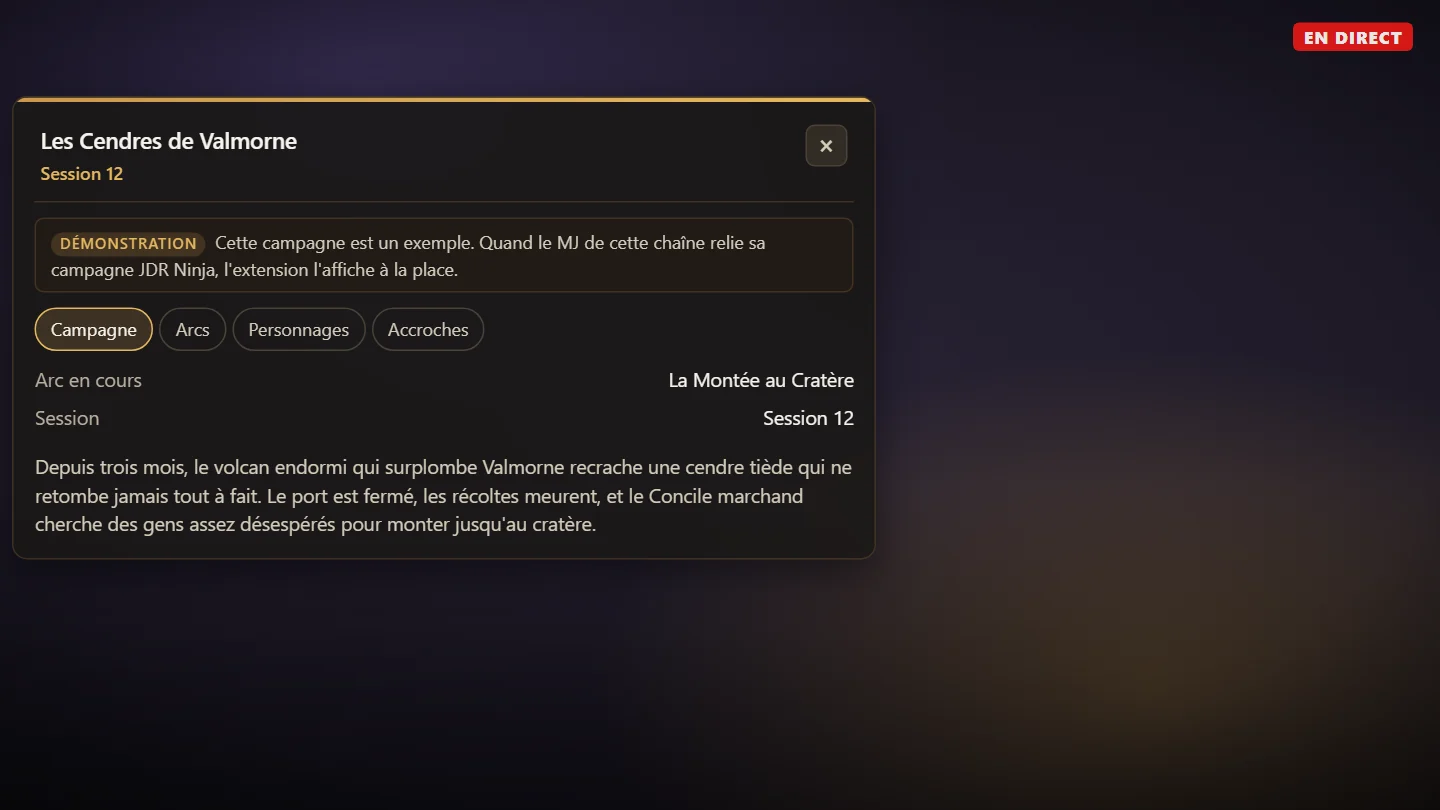
Your campaign shows in the "Overlay language" you picked. The demo follows each viewer's Twitch language.