Unified module in development
The features described are present in the local module. Validation before publication is ongoing, and its public installation link is not available yet.
Before you start
Check your Foundry and game system versions in the world settings. The module requires Foundry 14 or later; D&D generators target exactly Foundry V14 and D&D5e 5.3.3. Atlas synchronization accepts the systems listed on the module page.
Sign in as GM for generators, Atlas synchronization and Twitch table commands. Players can configure relay of their public rolls. Stream Deck is not required for the other features.
Install and enable the module
The unified module does not yet have a public installation link. The steps below concern a local copy; they do not install the old overlay module in its place.
If you have a locally built archive, place its contents in Data/modules/jdr-ninja on the Foundry server. The module.json file must be directly in that folder. Restart your own server, open the world, then enable JDR Ninja in module management.
Then open Foundry settings and the JDR Ninja connections window. It should show the account connection and, for the GM, the Atlas connection.
Link your JDR Ninja account
- In the module’s connections window, choose the generator authorization button in the D&D Creatures section if you want to generate monsters or NPCs. For the overlay alone, choose the account connection button. Then open the authorization link and sign in to JDR Ninja if needed.
- Check the code and device name. If you want to use the D&D generators, explicitly grant that feature before approving the connection.
- Return to Foundry and wait for the account confirmation. Access is checked separately for each feature. If the request expired or was denied, start a new connection.
You can also generate a manual token on your Foundry devices page and enter it in the module. It is shown only once. An old device without generator permission must be paired again to obtain that access.
Manage my Foundry devices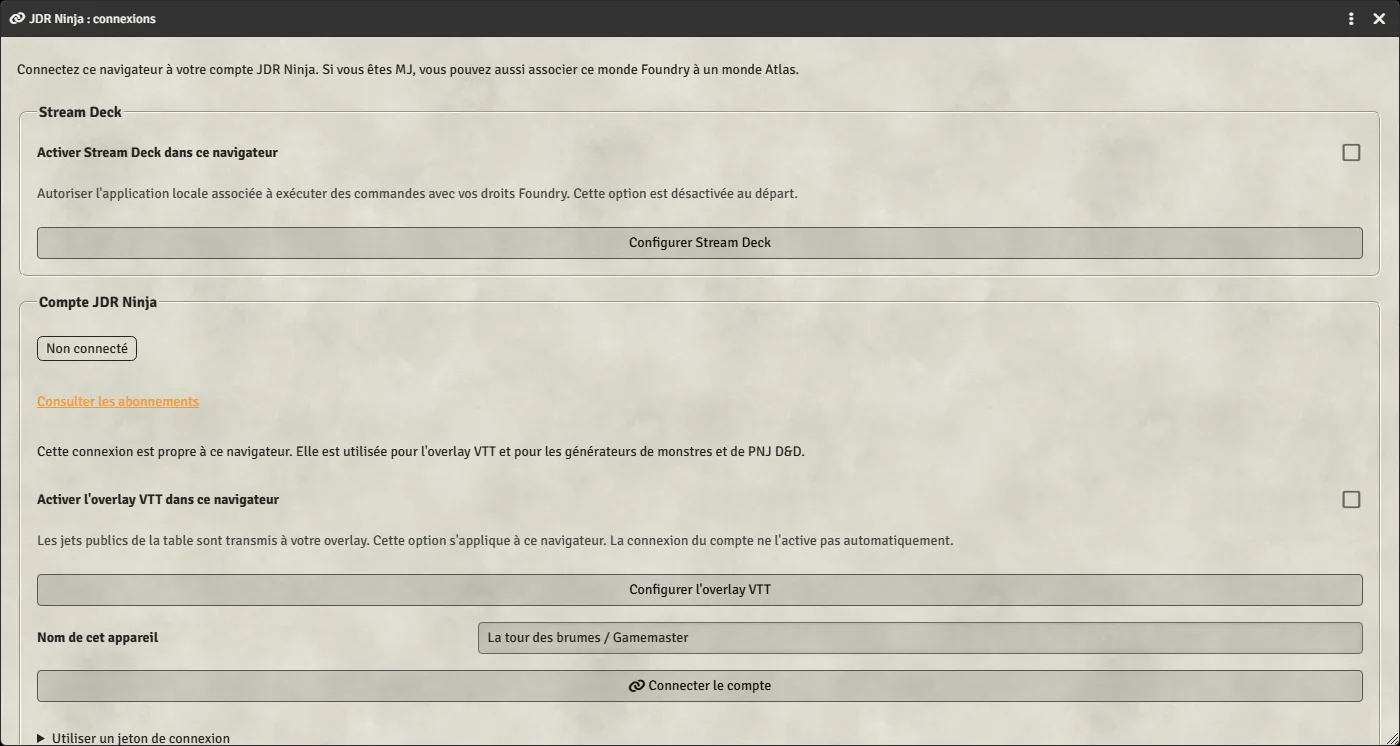
Enable your chosen features
Account pairing does not enable any integration automatically. The generator, overlay and Stream Deck switches start disabled. Enable only the features you want to use in this browser.
- D&D generators: check compatibility and Premium access, then enable the generators. Open Monsters or NPCs from JDR Ninja settings or the Actors directory.
- Overlay: prepare your OBS source in the website’s overlay configuration, then enable Foundry relay. Module diagnostics can check the overlay and OBS source; a test send requires the same paid access as rolls.
- Stream Deck: configure the companion and plugin first, then enable the local connection in Foundry. The dedicated guide explains the local key and session selection.
Connect your Atlas world
- On the website, open your Foundry connections and create a synchronization connection for the relevant Atlas world. Copy the token shown once. You can also create the connection from that world’s settings.
- In Foundry, enter that token in the Atlas section of the JDR Ninja window. Check the world name and synchronization access. This token is separate from the account connection and Stream Deck key.
- Enable Atlas synchronization for this Foundry world, open its window from the Actors directory and select the campaign. Link an actor to an existing character or create the character in Atlas, then start synchronization. Check the sheet in Atlas.
Check your first use
For a creature, choose a simple profile, generate once, review the preview and create the actor. Check its sheet in Foundry. Each new generation counts toward your account limits; opening this page does not generate a result.
For Atlas, check one character before sending the full list. For the overlay, make a simple public roll and compare the result in Foundry and OBS. For Stream Deck, test a key that opens a sheet before configuring combat commands.
If you use the old modules
Disable Atlas Character Sync or the old VTT Overlay module before enabling the corresponding integration in the unified module. Settings and connections are not copied automatically. The existing Atlas token can be entered in the new window.
Successful Atlas synchronization can adopt existing actor links. A local disconnect clears the token saved in the module but does not revoke it on the website. Use the management pages to revoke a device or connection.
Troubleshooting
The connection expired or was denied
Restart pairing in Foundry and use the new code. Check that you approve the correct device and account. A cancelled or expired request cannot be reused.
My account is linked, but a feature remains unavailable
Check the message for that feature: device permission, subscription, GM permissions, compatibility and enablement are separate requirements. An Atlas token does not grant D&D generator access. If the token was revoked, pair the device again.
The generators reject my Foundry or D&D5e version
The current target is Foundry V14 with D&D5e 5.3.3. The module’s loading minimum and the systems accepted by Atlas do not change this requirement. Check compatibility in the generator window.
Atlas synchronization does not start
Check your GM role, the world’s Atlas switch, game system, correct world token and synchronization access. Disable the old Atlas Character Sync module if it is still active. The account linked for the overlay does not replace the Atlas connection.
Dice do not appear in OBS
Check relay in this browser, the active website overlay, the OBS browser source and your subscription. Make a public roll containing dice. Private rolls are never forwarded. Check module diagnostics and disable the old overlay module if active.
Stream Deck cannot find the Foundry session
Check that the companion is running on the same computer as the Foundry browser and Stream Deck app. The local connection must be enabled. After Foundry reconnects, select the session again on affected keys. The Stream Deck guide explains keys and connection restrictions.